


This article was written by Gerri and presented at the Tech-Chat 55+ and Social Group at the Cloverdale Recreation Centre on May 8, 2025.
Google Keep is a simple database which remembers any bits of information you want
to keep track of. It can hold pictures, notes, web links, reminders, grocery and to-do
lists, among other things. It saves them automatically so you don’t have to. This
presentation will show you how to do that using the help files from Google as a guide.
Note: Keep works with Macs, PCs, iPads and even your phone, although not all
features will work on all platforms
USING GOOGLE KEEP

- Go to keep.google.com
- If you are signed in to your Google account, look for the nine dots menu in the upper
right hand corner underneath your picture. If you are not signed in, then you need to sign in first. If you have a GMail address, you have a Google account. - Scroll down and select Keep.
- On the top left side, click on the ‘ hamburger menu’ – the three lines at the top of the page.
- Your menu choices are Notes, Reminders, Edit labels, Archive, and Trash. You can add other menu choices by clicking on Edit Labels and Add label.
- Click in the Take a Note box and write a short note to yourself.
- Keep automatically saves the note when you click close.
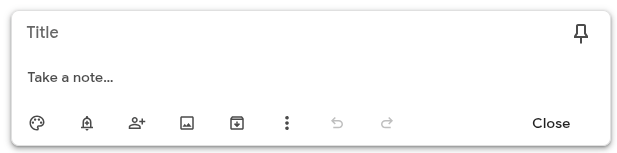
- You can set a color background for your notes by clicking on the little painter’s palette in the bottom of the Note box.
- The bell button lets you set reminders.
- The people + icon lets you collaborate with others.
- With the image icon you can images including drawing directly on the note (much
easier with a touch screen or tablet). - The file folder icon with a down arrow will archive your note for later use.
- The three dots means ‘more menus here’.
- After you have several notes written, you can use the double line menu on the top right to change the display from list to grid or vice versa.
- Add any tips you like and Keep will store them for you. I find it helps to use colour coding for different types of information, like recipes in green and computer tips in white and book recommendations in yellow.
YouTube is full of tutorials, but one of the best is by Steve Dotto on how useful Keep is.
 55+ Tech Chat Social Group